Email & Communications
Every automated email GiveLink sends — donation receipts, thank-you follow-ups, year-end statements, campaign updates, and more — built from a unified design system.
GiveLink sends automated emails at every meaningful moment in the donor lifecycle — from the first donation receipt to year-end giving statements. All 15 email templates share the same warm, editorial design language powered by Resend.
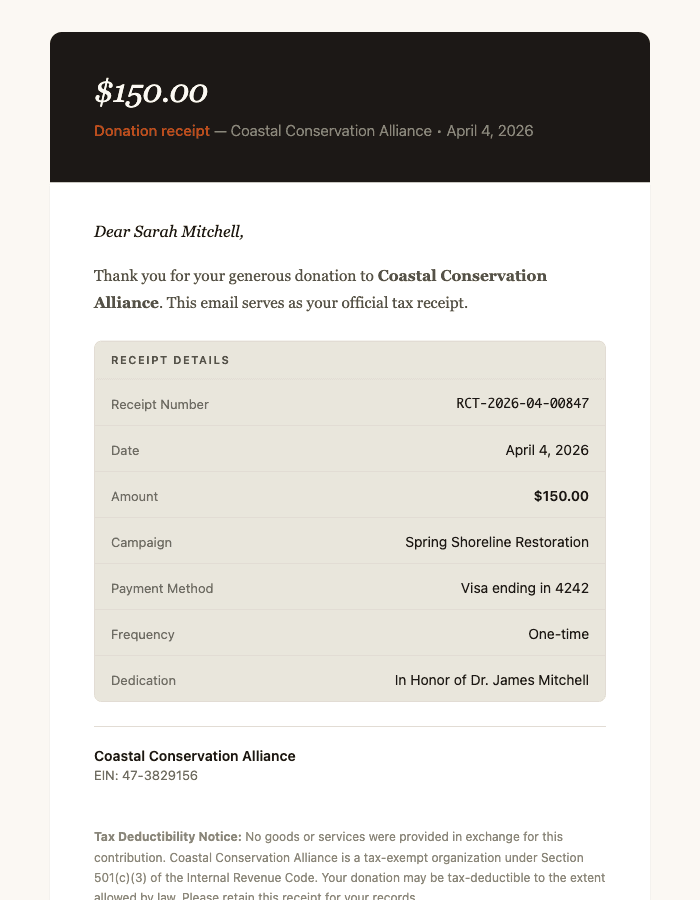
All email features are included for every GiveLink organization. There are no premium tiers, no per-email charges, and no template limits.
Donor Emails
These emails are sent directly to donors at key moments in their giving journey.
Donation Receipt
Trigger: Immediately after a successful donation (one-time or recurring charge).
The donation receipt is a tax-compliant acknowledgment that includes:
- Donor name, donation amount, date, and campaign
- Receipt number and payment method
- Fee breakdown (if fee coverage was applied)
- Tribute/memorial details (if applicable)
- Organization name, EIN, and address for IRS documentation
- Link to view or download the full receipt
Receipts are generated automatically for every donation — including recurring renewal charges. No manual work is required. See the Donation Forms and Recurring Giving guides for more on how donations are processed.
Welcome Email
Trigger: After a donor's first-ever donation to an organization.
The welcome email introduces the donor to the organization and provides a link to their donor dashboard. It includes:
- Personalized greeting
- Brief organization mission statement
- Link to the donor dashboard where they can view giving history, manage recurring plans, and update their information
Thank-You Follow-Up
Trigger: 7 days and 30 days after a donation.
GiveLink sends two timed follow-up emails after each donation:
- 7-day follow-up — A warm thank-you that reinforces the donor's impact while the gift is still fresh
- 30-day follow-up — A longer-term impact message that connects the donor's gift to outcomes
Both variants are automatic and can be disabled per campaign.
Year-End Giving Statement
Trigger: Sent manually or on schedule at year-end (typically January for the prior tax year).
A comprehensive giving summary for the donor's tax records, including:
- Full table of every donation made during the year — date, campaign, amount, and receipt number
- Total giving amount prominently displayed
- Organization name, EIN, and address
- Receipt language noting whether goods or services were provided in exchange
- Closing signature from the organization's designated signer
Year-end statements use a multi-column data table with alternating row colors for easy scanning. See the Donor Management guide for more on donor records and exports.
Refund Confirmation
Trigger: When a donation is refunded (full or partial).
Notifies the donor that their refund has been processed, including:
- Original donation details (amount, date, campaign)
- Refund amount and expected timeline
- Refund reason (if provided by the organization)
Subscription Change Notification
Trigger: When a recurring donation plan is paused, resumed, canceled, or the amount is updated.
Confirms the change to the donor with a detail table showing:
- Change type (paused, resumed, canceled, or amount updated)
- Current plan details (amount, frequency)
- New amount (if updated)
See the Recurring Giving guide for full details on subscription management.
Payment Reminder
Trigger: Sent to lapsed donors after a configurable period of inactivity.
A gentle re-engagement email that references the donor's last gift:
- Days since last donation
- Last gift amount and campaign
- Direct link to donate again
- Unsubscribe option
Campaign Update
Trigger: When an organization publishes an update to a campaign.
Notifies donors who have given to the campaign about milestones, progress, or news:
- Campaign name and update title
- Rich text update body (supports formatting from the campaign editor)
- Link to the campaign page
- Unsubscribe option
See the Campaigns guide for how to publish campaign updates.
Tribute/Dedication Notification
Trigger: When a donor makes a gift in honor or in memory of someone and provides a notification recipient.
Sent to the honoree or their family to let them know a gift was made in their name:
- Name of the donor (or "Anonymous" if they chose to give anonymously)
- Dedication type (in honor of / in memory of)
- Personal message from the donor (if provided)
- Campaign and organization name
See the Donation Forms guide for how tribute giving works.
Donor Portal Magic Link
Trigger: When a donor requests access to their self-service portal.
A secure, passwordless authentication email containing:
- One-click magic link to access the donor portal
- Link expiration notice
- The link grants access to giving history, recurring plan management, and receipt downloads
Email Sequence Steps
Trigger: Automated drip campaign steps on a configurable schedule.
Used by the email sequence engine to deliver multi-step nurture campaigns:
- Supports rich text content defined in the sequence builder
- Each step uses the same branded layout
- Includes unsubscribe link
Admin Emails
These emails are sent to organization administrators and team members.
New Donation Notification
Trigger: Immediately after a donation is received.
Alerts admins when a new gift comes in, with:
- Donor name, amount, campaign, and payment method
- Quick-reference detail table
- Whether the donation is one-time or recurring
Dispute/Chargeback Alert
Trigger: When Stripe reports a payment dispute on a donation.
A warning-styled email with urgent details:
- Disputed amount, donor name, campaign
- Dispute reason (translated from Stripe reason codes to plain English — e.g., "Reported as Fraudulent," "Duplicate Charge")
- Response deadline
- Stripe dispute ID for reference
- Guidance on next steps
Disputes have a response deadline. Missing it results in an automatic loss. GiveLink surfaces the deadline prominently in the alert email and on the dashboard. See the Stripe integration guide for dispute handling details.
Weekly Activity Digest
Trigger: Weekly on a configurable day.
A summary of the organization's fundraising activity for the past week:
- Total donations received and amount
- New donors acquired
- Campaign performance highlights
- Recurring plan changes (new, paused, canceled)
Team Member Invite
Trigger: When an admin invites a new team member to the organization.
Contains a one-click link to accept the invitation and set up their account.
Email Delivery
All emails are sent via Resend, a modern email delivery service built for developers.
Delivery Details
| Setting | Value |
|---|---|
| From address | noreply@givelink.ai (configurable) |
| Provider | Resend |
| Logging | Every email is logged with recipient, subject, type, and Resend message ID |
| Tracking | Delivery status, open tracking, and click tracking via Resend |
Email Logs
Every email sent through GiveLink is logged in the database with:
- Recipient email and name
- Subject line and email type
- Associated organization, donor, and donation IDs
- Resend message ID for delivery tracking
Admins can view email logs in Dashboard > Marketing > Email History.
Unsubscribe Management
Emails that include marketing or non-essential content (thank-you follow-ups, campaign updates, payment reminders, email sequence steps) include an unsubscribe link. Transactional emails (receipts, refund confirmations, dispute alerts, magic links) do not include unsubscribe options, as they contain essential account or financial information.
Design System
Every email shares the same visual language — a unified design system that ensures consistency across all donor and admin communications. All 15 templates compose from 13 reusable components.
Visual Identity
| Element | Design Choice |
|---|---|
| Header | Charcoal (#1C1917) with rounded top corners |
| Headline | Georgia italic, cream text |
| Body text | Georgia serif, 15.5px, olive (#535146) |
| Greeting | "Dear Sarah," in Georgia italic |
| Accent color | Terracotta (#C4501E) — used for CTAs and section heads |
| Background | Cream (#FBF8F3) |
| Buttons | Charcoal with cream text, terracotta arrow |
| Footer | "Generosity, elevated." in italic serif |
Shared Components
- Branded layout — charcoal header, white body, cream footer wrapper
- Greeting — italic serif "Dear [Name],"
- Body paragraph — serif text with 1.75 line height
- Detail table — warm cream background with olive section headers for line-item data
- CTA button — charcoal with cream text and terracotta arrow
- Callout — left-bordered info (olive) or warning (amber) box
- Org block — organization name, EIN, and address for tax compliance
- Signature — "With gratitude," followed by italic name and title
- Legal text — small, muted compliance copy
- Data table — multi-column with alternating row colors for year-end statements
- Heading — italic serif section headers in terracotta
- Unsubscribe — subtle footer with divider
- Badge — inline terracotta label for status indicators
All emails display your organization's name in the header and footer. Your organization's name is pulled automatically from your GiveLink account settings.
Last updated on 9/9/2026